3 min read
To create candy cane roofline lights, repeat equal groups of red and white, preview them in a static pattern, and adjust the group size until the stripes look balanced from the street. On an existing Trimlight system, you make these changes in the app without moving any installed lights.
Start with a simple alternating sequence, then compare it with wider red-and-white groups. Your existing bulb spacing, roofline shape, and viewing distance help determine which version you prefer.
Key Takeaways
- Use red and white as the two colors in a candy cane pattern.
- Compare one red light followed by one white light with equal groups of each color.
- Change the programmed group size, not the spacing of the installed lights.
- Check corners, gables, and brightness from a safe viewing position after dark.
- Use Save As to keep the finished design separate from an existing favorite.
How Do You Build a Balanced Candy Cane Pattern?
Build a candy cane pattern by choosing two colors, comparing group sizes, and testing the result on your own roofline. The six steps below apply to a compatible system controlled through Trimlight Edge. Leave installation and controller-configuration settings as your dealer established them.
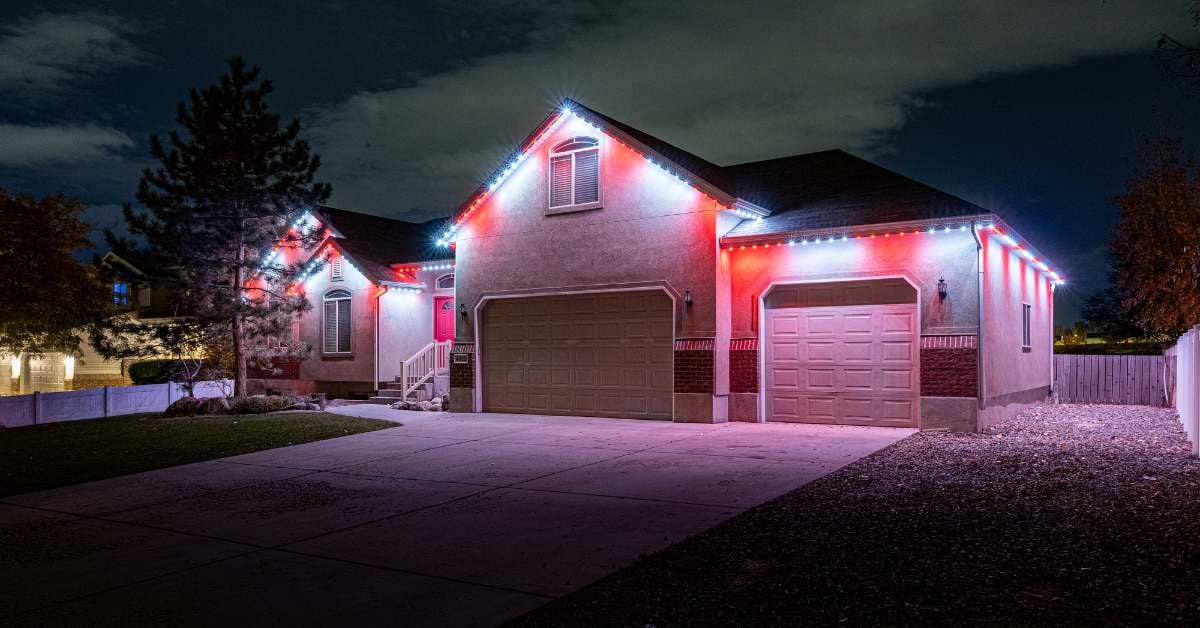
1. How Do You Start With Red and White?
Start in the custom-palette area with red and white, then choose Static so you can judge the colors without motion. Select your controller before editing the pattern.
Trimlight lists red as RGB 255, 0, 0 and white as RGB 255, 255, 255. RGB values specify the red, green, and blue contributions to a color. These are starting colors to preview, not a guarantee that every house or phone photograph will show the same result.
The existing Christmas patterns article includes the red-and-white candy cane idea. Keep this version to those two colors while you work on the stripe layout.
2. Should You Alternate Lights or Use Color Groups?
Compare both approaches on your house: one red light followed by one white light, then several red lights followed by the same number of white lights. Use equal counts initially so the comparison is straightforward.
- Individual alternating example: red, white, red, white.
- Grouped example: red, red, red, white, white, white.
The three-light groups are a suggested experiment, not a Trimlight preset or a universal recommendation. If individual colors are difficult to distinguish from your normal viewing position, test a larger group. If the colored stretches seem too long for a short roofline, try smaller groups.
3. How Does Existing Bulb Spacing Affect the Pattern?
Your installed spacing affects the distance covered by each repeated color group. Trimlight lists spacing options of 6, 9, and 12 inches. You do not change that physical spacing to create a new pattern.
A group containing the same number of lights will extend farther along a roofline with wider spacing. Compare the pattern on your installation rather than assuming a light count from another home will produce the same proportions.
Adjust only the light counts used for the colors in your custom pattern. If you do not know your layout or the app shows unfamiliar output, pixel, or wiring settings, ask your installing dealer before changing those settings.
4. How Do You Check Corners and Gables?
Check the red-and-white sequence where your roofline turns or changes slope. A color group may continue around a corner or across a peak rather than ending at the architectural boundary.
From safe ground-level positions, compare the long roofline run, garage section, and any visible gables. Decide whether you prefer continuous repetition or a different balance around those features.
Try one small group-count adjustment and preview again. Trimlight's app guide explains that section control depends on the physical installation. Do not assume every area is independently adjustable or change installer-configured outputs to make a stripe end at a corner.
5. How Do You Check Brightness From the Street?
Review brightness from the place where people normally see the house, using a safe sidewalk or other permitted viewing position. Check after dark rather than relying only on the appearance from your porch.
Look for two clearly recognizable colors and a repeating layout you can follow across the visible roofline. Adjust the pattern's overall brightness and compare again, keeping the color groups unchanged during that test.
Trim color, siding, and nearby porch fixtures can affect how the display appears. The house-color guide explains these differences. Judge the actual lights as well as any photographs, since a phone image can show colors differently.
6. How Do You Save Without Overwriting a Favorite?
Choose Save As to give your candy cane pattern its own saved entry. Trimlight distinguishes Save As, which creates a new pattern, from Cover, which overwrites an existing one.
Name the new entry clearly, such as Candy Cane Static, and reopen it to confirm you saved the version you intended. If you later test another group size, save that trial separately until you decide which design to keep.
For automatic operation, follow the existing scheduling instructions. Select the saved pattern, check the active days and on/off times, and exit in Timer Mode. Do not assume saving a pattern automatically changes your schedules.
Frequently Asked Questions
How many lights should be in each candy cane stripe?
There is no single group size for every Trimlight roofline. Start with equal red and white counts, then compare individual alternating lights with a larger group. Choose by your installed spacing and the way the pattern looks from your normal viewing distance.
Can I use warm white instead of pure white?
Yes. You can test warm white alongside red in Trimlight Edge. Trimlight lists warm white as RGB 220, 100, 20 in its RGB color reference. Compare both whites on your home and save the version you prefer.
Does a candy cane pattern need movement?
No. Repeating red and white can create a candy cane look as a static pattern. Establish the colors and grouping first. If you later try a supported animation in Trimlight Edge, preview its result separately and keep the static version saved.