4th of July Trimlight Patterns: Red, White and Blue LED Ideas
July 4th hits different when your home is already dressed for it. No last-minute runs for extension cords, no tangled light strings pulled out of a...
Table of Contents
The Trimlight Edge app is the control center for your Trimlight permanent lighting system, and this guide works as a complete Trimlight Edge manual and tutorial. Whether your system was just installed or you are searching for how to use Trimlight for the first time, this guide assumes no prior experience with the app. You will find instructions for downloading and setting up Trimlight Edge, connecting your controller, choosing colors and patterns, building your own custom patterns, setting up schedules, adjusting brightness and speed, understanding how lighting zones work, and troubleshooting an offline controller, all explained in numbered steps you can follow along on your own phone.
Before you can control your lights, you will need the Trimlight Edge app installed, an account set up, and your controller connected to your home Wi-Fi. The steps below walk through each part of that process, from downloading the app to getting your controller online for the first time.
Trimlight Edge is the official control app for compatible Trimlight permanent lighting systems, managing colors, patterns, brightness, speed, and schedules from your phone or tablet.
Trimlight Edge is a free download for compatible iPhone, iPad, and Android devices. Search for "Trimlight Edge," not just "Trimlight."
1. Open the App Store (iPhone/iPad) or Google Play (Android) and search for "Trimlight Edge."
2. Select the correct app and install it.
3. Open the app and allow the local network, Bluetooth, Wi-Fi, and notification permissions requested.
Open Trimlight Edge and select Sign Up.
Enter your account information and create a password.
Retrieve the verification code sent to your email and enter it.
Join your home's 2.4 GHz network, open Trimlight Edge, and follow the app's pairing process to add your controller.
Confirm the controller has power, then join your phone to your home's 2.4 GHz Wi-Fi.
Open Trimlight Edge, tap the plus symbol on the controller list, and select Add Device.
Enter your Wi-Fi password and begin the pairing process.
Hold the controller's STA/AP button until the green light flashes, then follow the on-screen steps.
Wait for the light to turn solid, then confirm the controller appears in the app.
Weak signal may require a Wi-Fi extender or affect combined-band setups.
Once your controller is connected, it helps to know your way around the app before adjusting colors or setting up schedules. This section covers the main screens, the three operating modes, and how to use Trimlight Edge if more than one person in your household wants access.
Icons may shift slightly between updates. Here is what each main area does.
A schedule will not run if the controller is left in Manual mode.
Trimlight Edge can be installed on more than one compatible device. Sign in with the account tied to your controller to access it elsewhere, but only one device should control the system at a time.
With your controller connected, you can start customizing how your lights look. This section covers choosing a ready-made preset, changing colors, building your own custom pattern from scratch, and adjusting brightness and animation speed along the way.
Open the custom-palette area, choose a color, select Static or an animation, adjust brightness, and save it as a new pattern.
Save As creates a new pattern; Cover overwrites it.
Add colors to a sequence, choose a motion style, adjust brightness and speed, then save and name it.
Name patterns by occasion, for example Christmas Red and Green, Halloween Orange and Purple, or Game Day.
Explore more Trimlight pattern ideas and seasonal guides
Brightness controls LED intensity, and speed controls how fast a pattern animates. Static patterns don't use speed, and some effects add spacing or direction controls.
Lighting zones depend on your installation. A controller output is the wiring connection a light string uses; pixel assignment is each light's position along it.
If you don't know your light counts or layout, contact your installing Trimlight dealer.
Once you have a pattern you like, scheduling lets your lights turn on and off without any daily effort on your part. Here is how to set up recurring daily schedules, one-time calendar events, and sunset-based timing.
Save the pattern, open the clock icon, choose a daily schedule, set the days and times, then switch to Timer mode.
Trimlight Edge supports two daily scheduling periods.
Calendar events run a pattern only on specific dates, useful for holidays, birthdays, and parties.
Depending on your app and firmware version, Sunset may appear as a schedule start time.
If timing seems off after daylight saving, toggle the schedule off and back on, saving each time, then exit in Timer mode.
If something isn't working the way you expect, start here. This section covers what to do when your controller shows as offline and how to keep its firmware current so every feature works correctly.
Usually a power, Wi-Fi, or signal issue.
Avoid a factory reset early on, since it can erase saved patterns and schedules.
Related support guide: What to Do When Your Trimlight Controller Is Offline
Outdated firmware can prevent features from working correctly.
Choose a preset or create a pattern in the Custom Palette, adjust its movement, brightness, and speed, and save it to your Library.
Open the Schedule screen, choose a saved pattern, select the days and on/off times, and switch the system to Timer mode.
In the Custom Palette, press and hold a color circle outside the gray box, choose a color or enter an RGB code, and tap OK.
Zones are created using controller outputs and light addresses in the Custom Palette, so contact your installing Trimlight dealer if you are unsure how your system is configured.
Create or edit the pattern in the Custom Palette, then select Save As to create a new pattern or Cover to overwrite an existing one.
Stay connected with Trimlight. Subscribe for monthly news, product updates, and outdoor lighting inspiration.
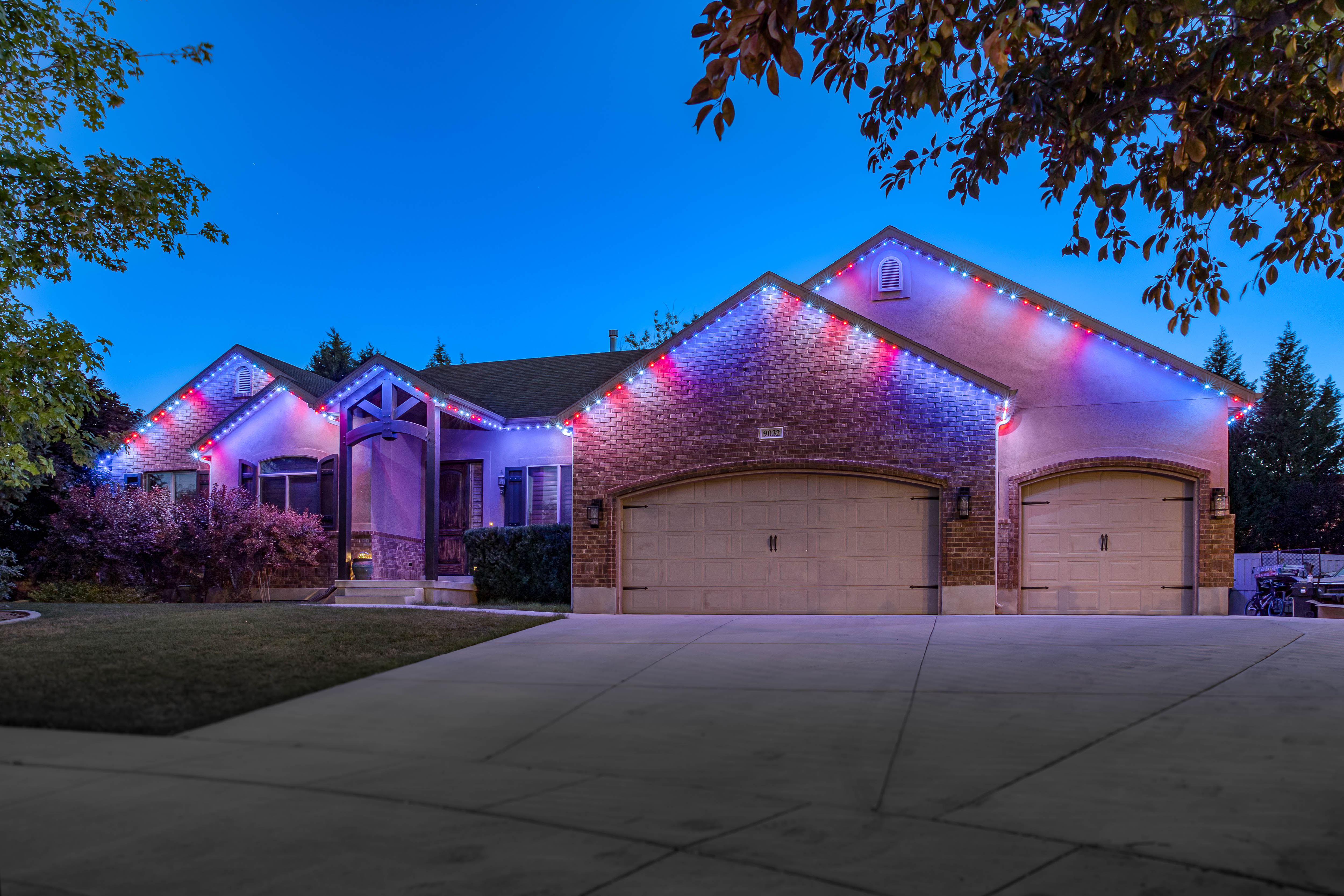
July 4th hits different when your home is already dressed for it. No last-minute runs for extension cords, no tangled light strings pulled out of a...
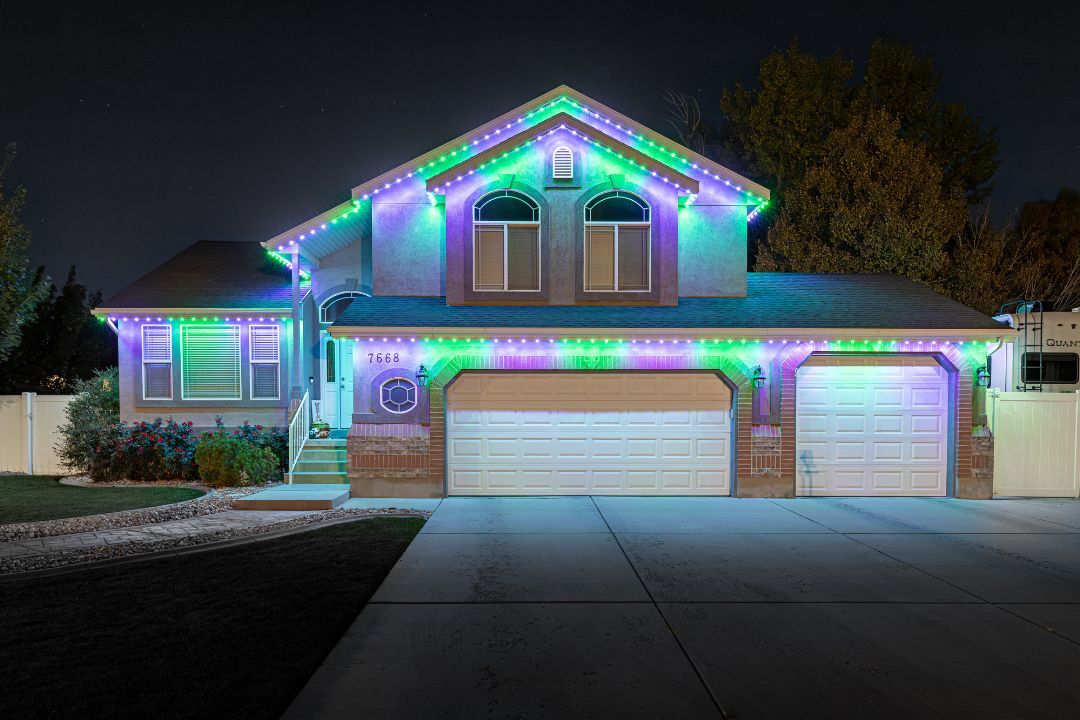
Most people think plug-in timers are enough until they start dealing with limited features and constant manual adjustments. They work in a basic way...
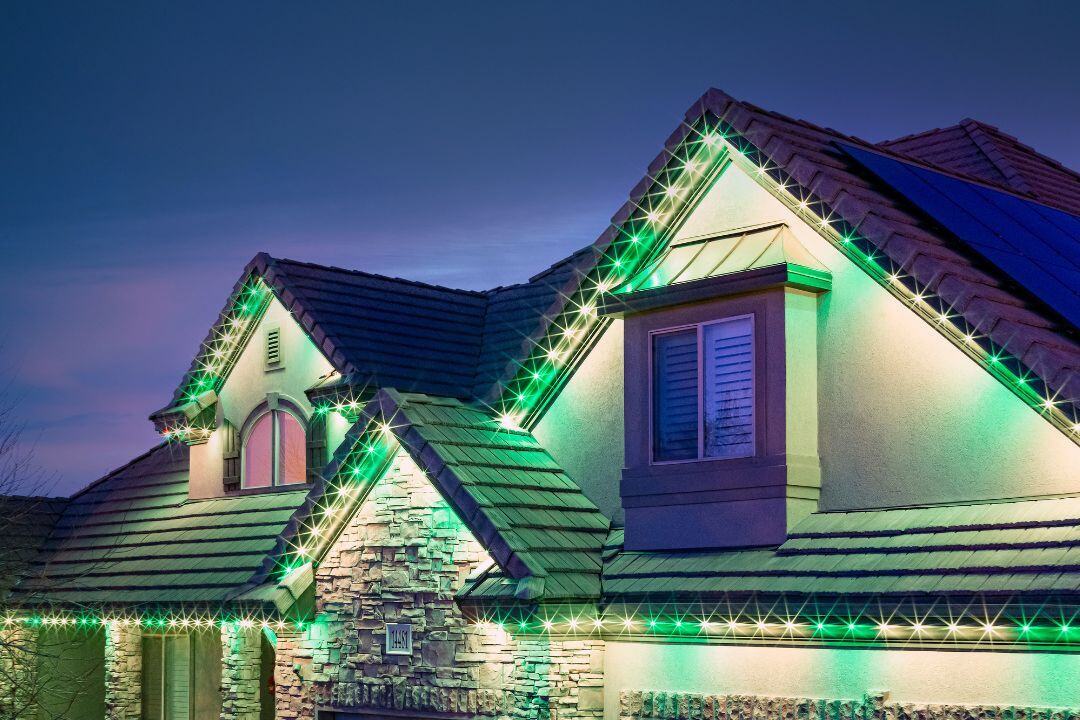
'Tis the season for festive decorations and twinkling lights, but why spend countless hours every year hanging and removing them? Withprogrammable...